
Check this out to see how to change the data field size in your eTrex SE.
Steps to Change the Size of Your Data Fields
- Select [TRACKING]
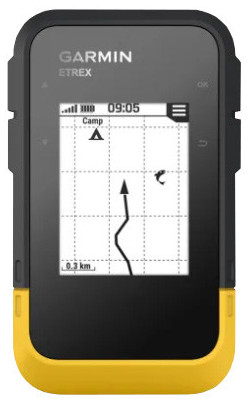
- Select the Up or Down arrow on the Side
- Go to the Data Screen that shows the 8 Data Fields
- Select [OK]
- Select [MORE OPTIONS]
- Select [LESS DATA]
- In addition to this, you can:
- Select [OK]
- Select [CHANGE DASHBOARD]
- Select [LARGE DATA FIELDS]
Here are a few images to show you the difference.
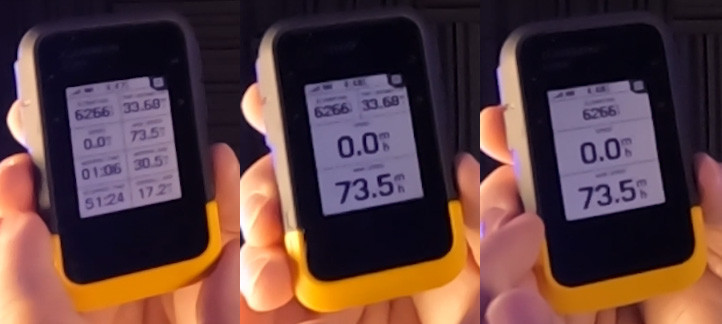
Final Thoughts
It’s very easy to change the size of your data fields, and hopefully this has been helpful to you.
Check out this short YouTube video below for more information.
No products found.

Return to Home Page